Microsoft Copilot skills are saved instructions that Copilot reuses for a task you repeat. Each skill is a SKILL.md file: a name, a description that tells Copilot when to use it, and the steps to follow, with optional templates or scripts beside it. You create one by describing the task in Copilot Chat, by typing @skill-builder in Copilot in Excel, or by recording yourself in Copilot in PowerPoint. Skills in Copilot Chat need a Microsoft 365 Copilot (Premium) licence. Everything below was checked against Microsoft's own pages on 22 November 2026.
The prompt library nobody opens
In the companies I work with, the prompt library is usually a PDF. Someone drops it into Teams with a hundred prompts inside. Two or three get used. Sometimes none.
A marketing lead at a global industrial group described it on a call this month: "Everybody's like, you need to do good prompts, so people copy paste prompts." Nobody knows why the pasted prompt works, so nobody can fix it when it stops working.
Microsoft's answer this autumn is the skill. You save the method once, Copilot picks it up when the task comes back, and everyone on the team runs the same version. It now runs in Copilot Chat, Excel, PowerPoint and Cowork, under the same name, with four different ways to build one.
The UK government's AI Adoption Survey 2026 found that 67% of businesses already using AI say limited skills, expertise or knowledge hold them back. Microsoft has now shipped skills. They come as a Markdown file.
The short version
- A Copilot skill is a folder holding a SKILL.md file: a name, a description of when to use it, and instructions. Copilot loads it when your request matches the description, or when you pick it yourself.
- There are four ways to build one: describe the task in Copilot Chat, ask @skill-builder in Excel, record yourself in PowerPoint, or upload a SKILL.md file you already have.
- Skills in Copilot Chat need Microsoft 365 Copilot (Premium). Microsoft says they "aren't available to Copilot Chat (Basic) users" (Microsoft Learn).
- Custom skills you make in Excel and PowerPoint sit in your own OneDrive. Getting one to a whole team runs through a Brand Kit, an admin deployment or a plugin.
- Copilot reads the same open Agent Skills format as Claude and Gemini. Microsoft warns that a shared format doesn't prove a skill works in every app, so test it in each one.
What is a Copilot skill?
A Copilot skill is a reusable set of instructions that Copilot applies to one kind of task. Microsoft's help page says skills "help you turn a repeatable task into a reusable workflow" (Microsoft Support). The skill tells Copilot what the task is, when it applies, how to do it and what to hand back, so you stop retyping the same brief.
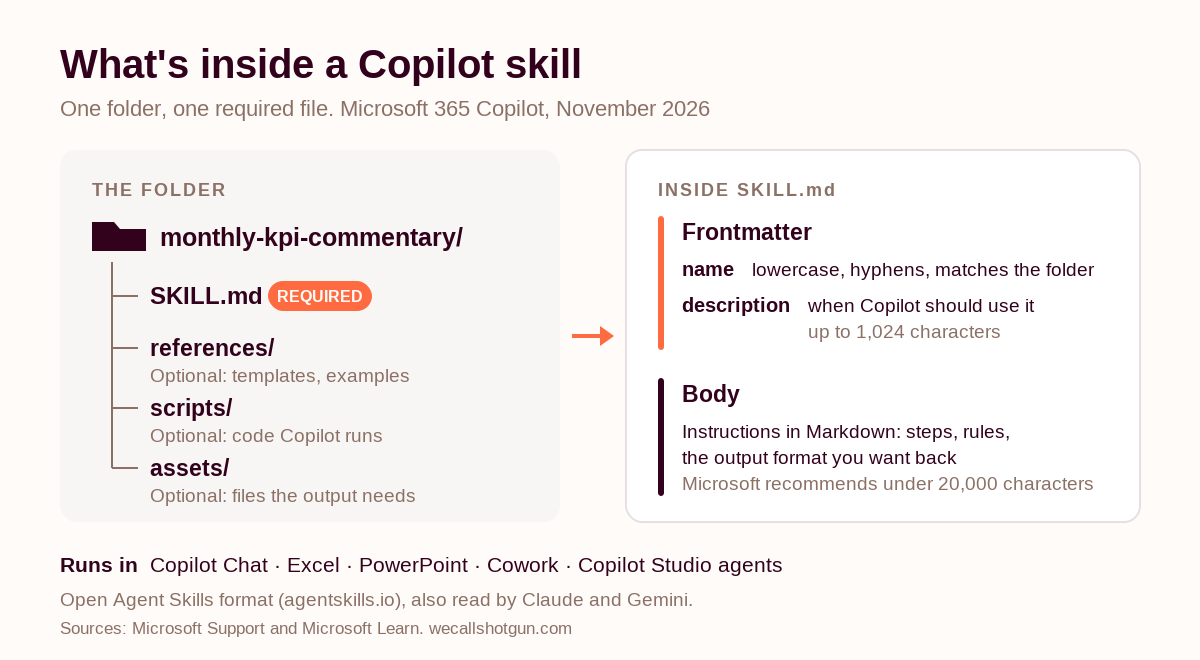
Every skill is a folder. Inside it sits a file called SKILL.md, in two parts:
- The frontmatter, between two lines of three hyphens at the top. It holds a name and a description. The name uses lowercase letters, numbers and hyphens, and has to match the folder's name. The description tells Copilot when to use the skill, so it should contain the words people actually type when they ask for that job.
- The body: your instructions in plain Markdown. Steps, rules, the format you want back.
Three optional folders can sit beside it: references for templates and examples, scripts for code Copilot can run, assets for files the output needs. Microsoft says skills with these extras "help Copilot produce more predictable results" (Copilot in Excel help).
Copilot reads only the name and the description until a request matches. Then it loads the instructions. Microsoft's Copilot Studio team describes skills as instructions "the agent loads on demand, only when a specific kind of task comes up" (Copilot Studio CAT blog). That's why a long skill doesn't weigh down every other chat.
The format comes from Anthropic, which published it as an open standard for Claude skills in December 2025. Copilot Chat supports the open Agent Skills specification at agentskills.io (Microsoft Support), and Google's admin guidance for Gemini skills refers to "the open SKILL.md standard" (Google Workspace). One file, three vendors. Whether it behaves the same in all three is a separate question, covered in the limits below.
Copilot skills vs agents, prompts and plugins: what's the difference?
A prompt is one request. A skill is a saved method Copilot pulls in when the task comes up. An agent is a separate assistant with its own instructions, knowledge sources and tools, and it can carry several skills. A plugin is the package Microsoft uses to ship skills, agents and connectors together.
| What it is | When it runs | Where you build it | Use it for | |
|---|---|---|---|---|
| Prompt | One request, typed or picked from the Prompt Gallery | When you send it | Any Copilot chat box | One-off asks |
| Skill | A SKILL.md with instructions, plus optional files | When your request matches its description, or when you pick it | Copilot Chat, Excel, PowerPoint, Cowork, Copilot Studio | A task your team repeats the same way every time |
| Agent | An assistant with its own instructions, knowledge and tools | When you open it or @mention it | Agent Builder, Copilot Studio | A job that needs its own knowledge base, like an HR policy assistant |
| Plugin | A package of skills, agents and connectors | Once installed, or deployed by an admin | Microsoft 365 App Store, Work IQ Dev Tools, the admin center | Giving a whole department the same skills |
| People Skills | Employee skill profiles in Viva and Microsoft 365 | Doesn't run tasks | Microsoft 365 admin center | Unrelated, despite the name |
Microsoft's Copilot Studio team gives the IT support example: password resets, software requests and incident triage work best as "one IT support agent with three Skills" (CAT blog). If the audience and the knowledge are the same, add a skill. If they differ, build another agent. Agent Builder caps an agent at eight skills, and a skill attached to one agent can't be reused by another (Microsoft Learn).
If your team's prompts still come back generic, the fix sits upstream of skills. A skill is a brief you wrote once and saved, so the four-part Copilot brief (goal, context, source, expectations) is what goes inside it.
Where can you use skills in Microsoft 365 Copilot?
Skills work in five places in Microsoft 365 as of 22 November 2026: Copilot Chat, Copilot in Excel, Copilot in PowerPoint, Copilot Cowork, and agents built in Copilot Studio or Agent Builder. Each one builds, calls and stores skills its own way.
| Where | How you build one | How you call it | Where it's saved | Status on 22 Nov 2026 |
|---|---|---|---|---|
| Copilot Chat | Describe the task in a chat, or upload a SKILL.md or ZIP | Pick it, or let Copilot choose it | Your tenant's SharePoint Embedded storage | Generally available, Premium licence only |
| Copilot in Excel | @skill-builder, or files in your OneDrive skills folder | Type @ and the name, or Add > Choose plugins and skills | Your OneDrive | Rolling out. Most built-in skills "may not be available for all customers" |
| Copilot in PowerPoint | Upload a file, paste into Add skill, or Record Skill | Type @ and the name, or + > Choose skills | Your OneDrive, a Brand Kit, or an admin deployment | In the release notes for the web on 23 September, Windows on 6 October |
| Copilot Cowork | Install Microsoft's role-based plugins, or your own | Type / in the prompt box, or let Cowork pick | The installed plugin | Available. The Accounting plugin is Frontier only |
| Copilot Studio and Agent Builder | The agent's Skills tab: from blank, generated with AI, or uploaded | The agent picks it | Inside that agent | Up to eight per Agent Builder agent |
Sources: Microsoft's help pages for Copilot Chat, Excel and PowerPoint, the Microsoft 365 Copilot release notes and Microsoft Learn on Cowork plugins.
The menus don't agree on a label yet. The Copilot app's left-hand menu says Agents & Plugins, and some help pages say Agents & Skills. UK Microsoft partner Changing Social expects people to notice that things have moved, and suggests briefing users before the "where's it gone?" questions start (Changing Social, 5 November).
How to create a skill in Copilot Chat
In Copilot Chat, you describe the job in a normal conversation and Copilot drafts the skill for you to review. Microsoft's help page lists what to include: the outcome, the steps, the constraints, the output format and the source files the skill should use.
- Open Copilot Chat and describe a task you repeat: what it produces, the steps, what Copilot must never do, the format you want back, and which files it should read.
- Copilot drafts the skill in the skill builder, in five parts: name, description, instructions, workflow and included files.
- Cut anything vaguer or wider than the job. Microsoft's advice is to keep "the instructions focused on one clear job so the skill stays predictable."
- Save it. Then decide whether Let Copilot use this skill automatically stays on.
Already have a SKILL.md, from Claude or a colleague? In the Copilot app, open Home, right-click Agents, choose More agents, then Upload skill from the Add drop-down. Upload the SKILL.md on its own, or a ZIP with SKILL.md at its root and no extra folder above it (Microsoft Learn).
Microsoft's authoring limits: the description can run to 1,024 characters, and it recommends keeping SKILL.md under 20,000 characters, with long reference material moved into separate files.
How to create a skill in Copilot in Excel
In Excel, type @skill-builder in the Copilot pane and tell it what to save. It works from your instructions, an earlier prompt, a finished example, or a task you just completed with Copilot. You preview the draft, then it saves the skill to a skills folder in your OneDrive.
Microsoft's own example prompts show the range (built-in skills page):
- "Save what we just did to a new skill."
- "Create a skill that formats monthly sales reports as tables, highlights negative variances, and adds a summary chart."
To add a skill by hand: open Settings (the ... in the top right of the Copilot pane), select Manage plugins & skills, then Custom skills and Create OneDrive folder. Put each skill in its own folder there. After you add or rename one, select Refresh. To hide a skill without deleting it, rename its folder: Copilot skips any folder whose name doesn't match the name inside its SKILL.md.
Excel also ships skills of its own. The ones most teams will meet first:
| Built-in skill | What it does | On by default? |
|---|---|---|
| @clean-data | Finds extra spaces, mixed text and number formats, inconsistent dates, duplicates and wrong data types, explains each one, and proposes fixes you choose to apply | Yes |
| @interactive-canvas | Builds a dashboard or report from the workbook that updates when the data changes | Yes |
| @chart-design | Creates charts, or adds titles, legends and labels to existing ones | No |
| @brandkit | Applies your company Brand Kit's colours, fonts and logos | Yes |
| @theme-design | Applies one Excel theme across charts, tables and cells | Yes |
| Accounting skills | Reconciliation, close management, variance analysis, financial statements, tax preparation and three more | Frontier programme only |
Finance teams also get modelling skills such as check-model, which audits a model for circular references, broken formulas and hardcoded overrides. Microsoft adds that Copilot "doesn't provide accounting, tax, audit, or financial advice," and every output needs checking against source records.
Two details catch people out. In Excel, switching a skill off stops Copilot using it automatically, but you can still call it with @. And most of these skills carry Microsoft's note that they're "rolling out to production and may not be available for all customers." On accounting skills, Microsoft's October update says worldwide in November and the help page still says Frontier. Check your own tenant before you plan around them.
One client, a French food and drink brand, takes panel data in Excel every month from volumes down to store level, then spends more time turning it into a presentation. Their marketing lead called it heavy and tedious. On paper that's @clean-data, then @interactive-canvas, then a custom skill for the commentary. I haven't run that chain on their data yet, so treat it as a plan.
How to create a skill in Copilot in PowerPoint
PowerPoint gives you three ways in: upload a skill file, paste one into the Add skill form, or record yourself doing the task and let Copilot write the skill from what you did. Microsoft's release notes list custom skills in PowerPoint for the web on 23 September 2026 and on Windows on 6 October.
Recording is the route for people who'll never write a Markdown file:
- Open the deck and the Copilot pane. Select +, then Choose skills, then Manage plugins & skills at the bottom of the list.
- Under Custom skills, select Add skill > Record Skill. Recording starts straight away.
- Do the task once. Prompts to Copilot, edits on the slide and ribbon buttons all count.
- Wait until Copilot's last change shows on the slide, then select Stop.
- Review the name, description and instructions Copilot drafted, edit them, and select Upload.
The limits (Microsoft Support): a recording must be shorter than 10 minutes, voice narration isn't captured, and anything done in another window is lost. Microsoft's suggested candidates are recurring slide formatting, table clean-up, chart styling, logo placement and layout changes.
For a team, PowerPoint has two sharing routes Excel lacks. Brand managers can attach skills to a Brand Kit, and anyone with access to that kit can use them: select brand, pick the kit, then Choose skills (Microsoft Support). Admins can upload a skill package in the Microsoft 365 admin center and deploy it to everyone or to named groups (Microsoft Support).
A marketing lead told me this month that AI-built decks fail on layout: "Every time I see what AI gives me, I'm like, this is not even usable." Microsoft shipped three answers in October: a new design model in PowerPoint, a template check that flags problems before a Brand Kit goes live, and skills that carry layout rules. A skill can't rescue a template nobody maintains, so the template check comes first.
Skills in Copilot Cowork
Cowork is where Copilot skills started, and where Microsoft ships its ready-made ones. Role-based plugins add skills for Sales, Service, Finance, Legal, Education and Capital Markets, with Accounting in the Frontier programme (Microsoft Learn). Type / in the prompt box to pick one, or let Cowork choose.
The skill names say what they do: sales-progress-update and visualize-sales-data in Sales for Cowork, draft-legal-memo and summarize-legal-matters in Legal for Cowork. Admins control which plugins people can add, under Agents > Tools in the Microsoft 365 admin center. Cowork runs on usage-based billing on top of the Premium licence (Microsoft Learn), so a skill that sends Cowork off on long tasks costs credits. Our guides to Copilot Cowork and the new Copilot app, with UK pricing cover the rest.
Which Copilot licence do you need for skills?
For skills in Copilot Chat, Microsoft 365 Copilot (Premium). Microsoft says skills "aren't available to Copilot Chat (Basic) users" (Microsoft Learn). For Excel and PowerPoint, Microsoft's skills pages don't name a licence, so check the label under your name in Copilot before you plan anything.
Microsoft shows one of three labels (Microsoft Support):
- Copilot Chat (Basic): chat grounded in web data. No Copilot in Word, Excel, PowerPoint or OneNote.
- M365 Copilot (Basic): no add-on licence, but Copilot inside Word, Excel, PowerPoint and OneNote, with fair-use limits.
- M365 Copilot (Premium): the add-on licence. Full Copilot in the apps, your work data, and skills in Copilot Chat. Cowork, Code and Autopilot come on top through usage-based billing.
Nobody checks this until it hurts. At a kickoff on 3 November for a global sales team's AI pilot, nobody on the call could say whether the sellers had Copilot Premium or Basic. Four cohorts were already signed. That one label decides what the pilot can cover: Copilot in Excel, or the chat only.
One more exclusion: tenants that use Microsoft Purview Information Barriers don't get skills in Copilot Chat at all, personal or plugin.
A Copilot skill you can copy: the monthly KPI commentary
Here's a skill I'd build for a leadership team that writes the same commentary on the same workbook every month. Save it as SKILL.md in a folder called monthly-kpi-commentary. Upload it in Copilot Chat, or put the folder in your OneDrive skills folder for Excel.
---
name: monthly-kpi-commentary
description: Use when I ask for the monthly KPI commentary, the board pack narrative or "what moved this month" from the KPI workbook. Writes five bullets for the leadership team.
---

# Monthly KPI commentary

Write the commentary the leadership team reads before the monthly review.

## Inputs
- The KPI workbook for the month. If I haven't attached or named it, ask for it.
- Last month's commentary, if I provide it.

## Steps
1. Find the five metrics that moved most against last month and against target.
2. For each one, write a single bullet: the figure, the change, the likely reason shown in the data, and the owner.
3. Flag any figure you can't trace to a cell in the workbook. Don't estimate it.
4. End with up to three questions the leadership team should ask.

## Rules
- British English. Numbers, no adjectives about performance.
- Never invent a figure, a reason or an owner. Write "not in the data" instead.
- Under 200 words.
Before anyone else sees it, I run Microsoft's own test list (Microsoft Learn) on last month's real workbook:
- Pick the skill explicitly and check the five bullets against the workbook, figure by figure.
- Turn automatic use on and ask in your own words, "what moved this month?" Check Copilot chooses the skill.
- Turn automatic use off and check it doesn't.
- Give it a workbook with a missing column and check it says so instead of filling the gap.
Then two colleagues run it on their own month. Only after that does it get shared.
Microsoft 365 Copilot, UK and France
Your team has Copilot. Most of it still gets used like a search bar.
We pull active usage from the Microsoft 365 admin center first, work app by app on each team's own files in Word, Excel, PowerPoint, Outlook and Teams, then compare usage again at the end. One workflow per team, a baseline before anything changes, and the change measured.
See how a Copilot rollout works →How to share a Copilot skill with your team
A skill stays personal until someone shares it. Copilot Chat lists skills shared by colleagues or your organisation under Agents & Plugins. In PowerPoint, a skill reaches a team through a Brand Kit or an admin deployment. In Excel, custom skills live in each person's OneDrive, and Microsoft's page suggests putting skills "created by your organization" in the same folder.
- Copilot Chat: skills and plugins your organisation deploys appear for the people they're deployed to. IT can package skills as a plugin with Work IQ Dev Tools and publish it to the organisation's catalogue.
- PowerPoint: a Brand Kit for anything brand-related, an admin deployment for the rest.
- Excel: each user's OneDrive skills folder, so sharing means handing over the folder.
- Cowork: plugins deployed by an admin under Agents > Tools.
- Copilot Studio: the skill lives inside its agent and travels with it. As of June 2026, Microsoft's Copilot Studio team said a shared catalogue for skills "is being worked on" (CAT blog).
Give every shared skill an owner and a version number. Microsoft's own checklist asks you to "record the skill version, owner, dependencies, known limitations, and support process" (Microsoft Learn). A skill nobody owns turns back into the hundred-prompt PDF, in a better file format.
Six limits to know before you roll out Copilot skills
1. Chat skills are Premium only
Copilot Chat (Basic) users don't get them, and neither does any tenant running Purview Information Barriers. If half your company sits on Basic, a skill built in Chat reaches half your company.
2. The rollout is uneven
Most of Excel's built-in skills carry the "may not be available for all customers" note, accounting skills are in Frontier, and two Microsoft pages disagree on the accounting dates. Your tenant is the only reliable source.
3. Custom skills start personal
Skills built in Excel and PowerPoint save to one person's OneDrive. PowerPoint's own help page says an uploaded skill "is only for your personal use." A skill in one person's OneDrive helps one person.
4. Each app accepts different files
Copilot Chat skills accept PDFs and images as reference files. PowerPoint skill ZIPs don't accept PNG or PDF files, or ZIPs nested inside ZIPs (Microsoft Support). A skill that works in Chat can fail to upload in PowerPoint.
5. Scripts run in a sandbox, and files have rules
Skill scripts have no network access, can't install packages and can't make authenticated calls (Microsoft Learn). In Excel, Microsoft says skills add no capability beyond what Copilot can already do. Chat skill files are stored in tenant-scoped SharePoint Embedded containers, sensitivity labels are kept, and user-defined permissions and Double Key Encryption aren't supported. Ask your security team before a skill carries client data in its reference files.
6. Same format, different behaviour
Microsoft puts it plainly: "a shared SKILL.md format doesn't establish cross-agent reuse or publishing eligibility" (Microsoft Learn). A Claude skill you upload may load fine and still behave differently, because each app has its own tools. Test it in every app you plan to use it in.
If skills sit alongside an AI policy, the policy should say what data a skill's reference files can hold. Our guide to writing an AI policy for employees covers that clause.
How I pick the first skill with a team
With a team that has Copilot and barely uses it, I start with one question: which task last week took you more than an hour and annoyed you? Then we time it, the way it's done today.
That task becomes the first skill. We write it with the person who does the job, run it on three real cases from last month, and time it again. If the second time isn't shorter, the skill doesn't get shared. If it is, two colleagues run it on their own work before it goes anywhere near Agents & Plugins.
Skills fail the way prompt libraries did when someone who doesn't do the job writes them. Copilot follows the instructions it's given. Somebody on the team still has to know what they should say.
"The tool was never the problem. Nobody taught them to drive."
Toni Dos Santos, Teach Them to Drive: The AI Adoption Playbook for Teams
Frequently asked questions
What are skills in Microsoft Copilot?
Skills in Microsoft Copilot are reusable instructions for a task you repeat. Each skill is a folder with a SKILL.md file holding a name, a description of when to use it and step-by-step instructions, plus optional templates or scripts. Copilot loads a skill when your request matches its description, or when you pick it. As of November 2026, skills work in Copilot Chat, Copilot in Excel, Copilot in PowerPoint, Copilot Cowork and Copilot Studio agents.
How do I create a skill in Microsoft 365 Copilot?
In Copilot Chat, describe the task you repeat (outcome, steps, rules, output format and source files) and Copilot drafts the skill in the skill builder for you to review and save. In Copilot in Excel, type @skill-builder and ask it to save a task, for example "Save what we just did to a new skill." In Copilot in PowerPoint, select Add skill, then Record Skill, and do the task once. You can also upload a SKILL.md file or a ZIP in any of the three.
Do I need a Microsoft 365 Copilot licence to use skills?
For skills in Copilot Chat, yes. Microsoft says skills are available only to users with Microsoft 365 Copilot (Premium) and not to Copilot Chat (Basic) users. For Excel and PowerPoint, Microsoft's skills pages don't name a licence, so check the label under your name in Copilot: Copilot Chat (Basic), M365 Copilot (Basic) or M365 Copilot (Premium). Copilot Chat (Basic) has no Copilot inside Word, Excel or PowerPoint.
What is the difference between a Copilot skill and a Copilot agent?
A skill is a saved method for one kind of task, which Copilot loads only when the task comes up. An agent is a separate assistant with its own instructions, knowledge sources and tools, and it can carry several skills. Microsoft's Copilot Studio team suggests one IT support agent with three skills for password resets, software requests and incident triage, instead of three agents. Agent Builder allows up to eight skills per agent.
Can I share a Copilot skill with my team?
Yes, though the route depends on the app. In Copilot Chat, skills shared by colleagues or deployed by your organisation appear under Agents & Plugins. In PowerPoint, brand managers can attach skills to a Brand Kit, and admins can deploy a skill package to everyone or to named groups from the Microsoft 365 admin center. In Excel, custom skills live in each person's OneDrive skills folder. In Cowork, admins deploy plugins that contain skills.
Do Claude skills work in Microsoft Copilot?
Often, with testing. Copilot Chat supports the open Agent Skills format from agentskills.io, the same SKILL.md format Anthropic published for Claude in December 2025, so you can upload a Claude skill's SKILL.md or ZIP. Microsoft warns that a shared SKILL.md format doesn't guarantee the skill behaves the same, because each app has different tools and file rules. Run it on a real task in each app before you share it.
What skills are built into Copilot in Excel?
Microsoft ships @clean-data, which finds duplicates, inconsistent dates and formats and wrong data types and proposes fixes, @interactive-canvas for dashboards that update with the data, @chart-design, @brandkit and @theme-design for formatting, and @skill-builder for making your own. Accounting skills such as reconciliation and variance analysis are rolling out through the Frontier programme, alongside finance modelling skills such as check-model. Microsoft notes several are still rolling out.
Are Copilot skills the same as Microsoft People Skills?
No. People Skills is a Microsoft 365 and Viva feature that builds a library of employees' professional skills for profile cards and skills-based experiences. Copilot skills are instruction files that tell Copilot how to do a task. The two share a name and nothing else. Older Copilot Studio pages also use "skills" for Azure Bot Service skills, a separate developer feature.
Sources and further reading
- Microsoft Support: Create and edit skills with Copilot, Use skills with Copilot in Excel, Use built-in skills with Copilot in Excel, Use custom skills with Copilot in PowerPoint, Record a skill in Copilot in PowerPoint, Deploy organization skills for Copilot in PowerPoint, Brand Skill support for Copilot in PowerPoint, What Copilot license do I have
- Microsoft Learn: Build skills for Microsoft 365 Copilot Chat, Build or reuse skills for a Microsoft 365 Copilot plugin, Skills in declarative agents, Available plugins for Copilot Cowork, What is Microsoft Copilot?, Microsoft 365 Copilot release notes
- Microsoft, What's New in Microsoft Copilot, October 2026, Microsoft Copilot Blog, 30 October 2026, updated 13 November
- Microsoft Copilot Studio CAT team, Agents Have Skills Now: Here's How They Work in Copilot Studio
- Katy Rumbelow, What's new in Microsoft Copilot, November 2026, Changing Social, 5 November 2026
- Agent Skills specification, agentskills.io, and Google Workspace, About the transition from Gems to skills
- Department for Science, Innovation and Technology, AI adoption survey report 2026: executive summary, GOV.UK, 29 October 2026
- We Call Shotgun: 5 ways to get better results from Microsoft Copilot, Copilot for Excel and PowerPoint workflows, Copilot Notebooks, now Workspaces, for teams, I stopped prompting and built 50 Claude skills