ChatGPT Enterprise does a lot more at work than rewrite emails. Five features handle the repetitive work around them: Projects keeps a project's brief, files and instructions in one place, scheduled tasks run a prompt on a timetable or when something happens, skills package a method your whole team can reuse, the ChatGPT browser extension works with the tabs you already have open, and deep research turns a decision into a cited brief. Each one comes with a prompt to copy.
You've had a ChatGPT Enterprise seat for months. It has softened an email to a client and shortened another one to your boss. Then Monday comes and you explain the same project to it from scratch. Again.
The repetitive work sits around the email. Re-explaining the project. Running the same Monday check by hand. Re-pasting the long prompt that finally works. Copying a web page into a chat window. Comparing three suppliers across dozens of tabs. OpenAI has a feature for each of those.
The scope, before anyone forwards this to IT. These are features Enterprise users can reach, and several exist on other plans too (our plans guide covers who gets what). What you see depends on your workspace settings, your permissions and OpenAI's rollout. The prompts are ours. We haven't measured what they save, so treat them as starting points.
Five frustrations, five features
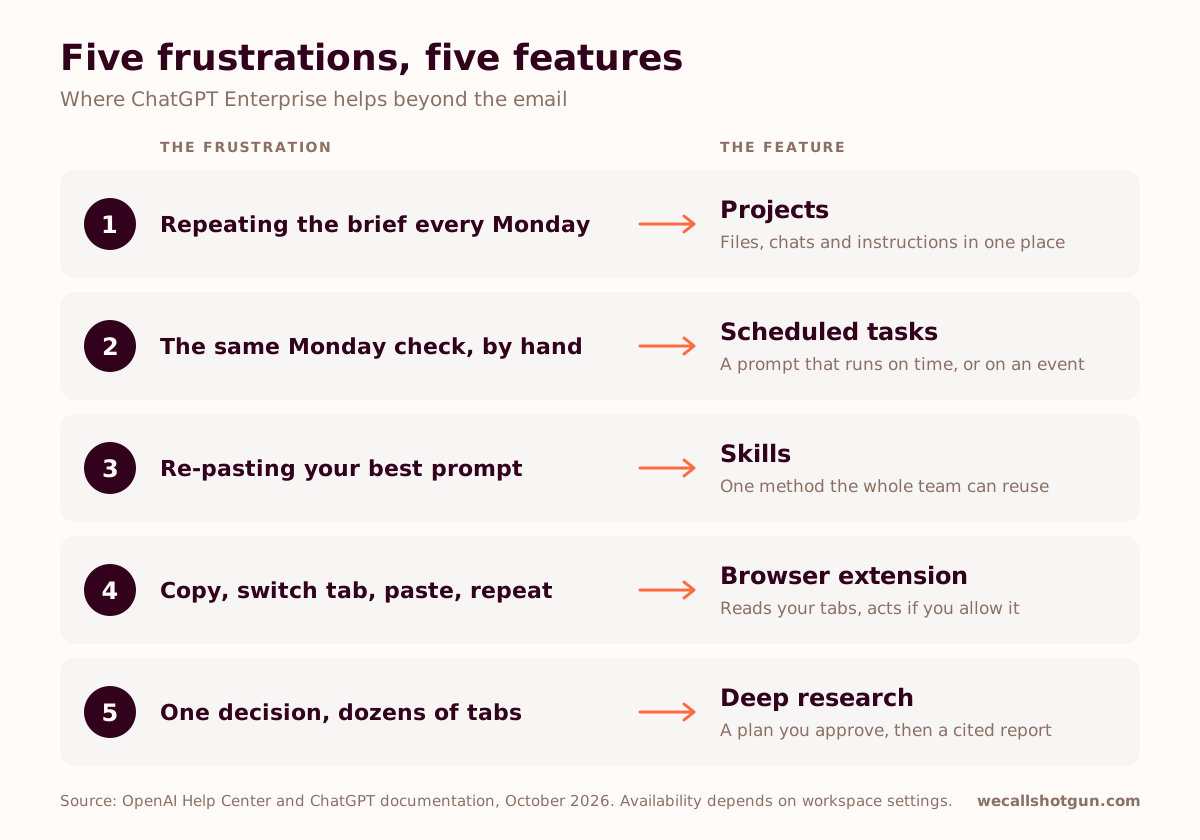
- You repeat the brief every Monday. Projects keeps the files, chats and instructions for one workstream together, and colleagues can share it.
- You run the same check by hand every week. A scheduled task runs the prompt for you, on a timetable or when an email or message arrives.
- Your best prompt lives in a notes app. A skill turns it into a method the whole team installs and reuses.
- You copy pages into a chat window. The browser extension reads your open tabs, and acts in them if you allow it.
- A small decision turns into dozens of tabs. Deep research proposes a plan you approve, then returns a cited report.
1. Projects: how do you stop briefing ChatGPT from scratch?
Every new chat starts with the same speech: what the project is, who it's for, which documents matter.
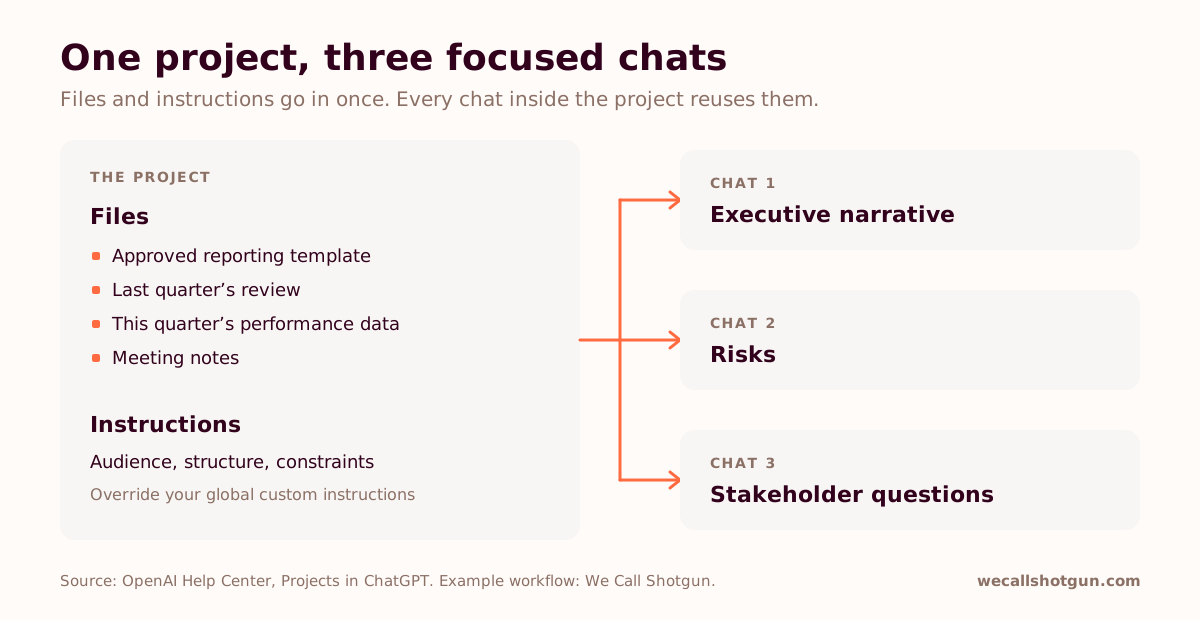
Put the work in a project. A project brings related chats, reference files and project-specific instructions into one place, and ChatGPT reuses that context across the chats inside it, according to OpenAI's help page on Projects. On Business, Enterprise and Edu workspaces you can share a project, so colleagues work from the same material and build on the same conversations.
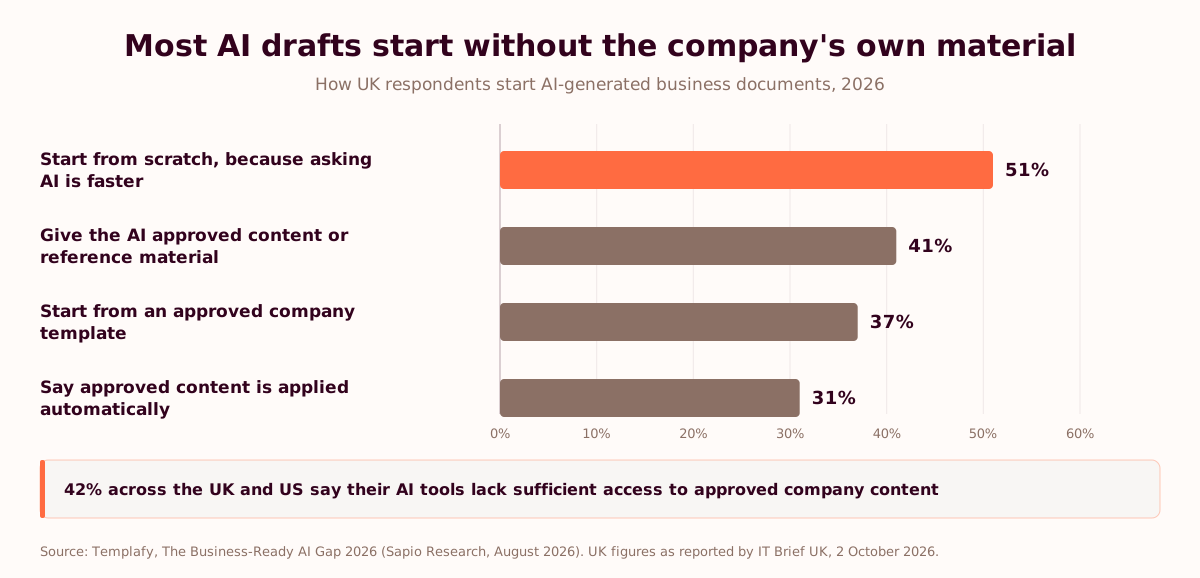
Missing context is the usual gap. In Templafy's 2026 survey of 2,000 UK and US knowledge workers, 42% said their AI can't reach approved company content (our analysis). A project is the cheapest fix: the approved files sit where every chat can use them.
Where it pays off: a team preparing a quarterly business review. Into one project go the approved reporting template, last quarter's review, this quarter's performance data and the meeting notes. Then open separate chats inside it: one for the executive narrative, one for risks, one for the questions stakeholders will ask. Three focused chats, instead of one enormous conversation trying to do all three.
How to start:
- Choose New project in the sidebar.
- Upload the reference material.
- Open the project settings (the three dots, top right) and add instructions on the audience, the structure and the constraints.
Project instructions to paste:
This project supports quarterly business reviews for the operations leadership team. Use concise business language. Separate documented facts from recommendations. Flag missing information rather than inventing it. Preserve approved metric definitions.A first task:
Using the current-quarter report and previous business review in this project, draft the executive update. Structure it as: progress, risks, decisions needed. Identify which source supports each material claim. If two sources disagree, flag the conflict rather than choosing silently.The detail worth knowing. Project instructions apply only inside that project, and they override your global custom instructions. So the QBR project can write in tight board language while your other chats keep your usual settings. Three workstreams, three house styles, nothing to switch by hand.
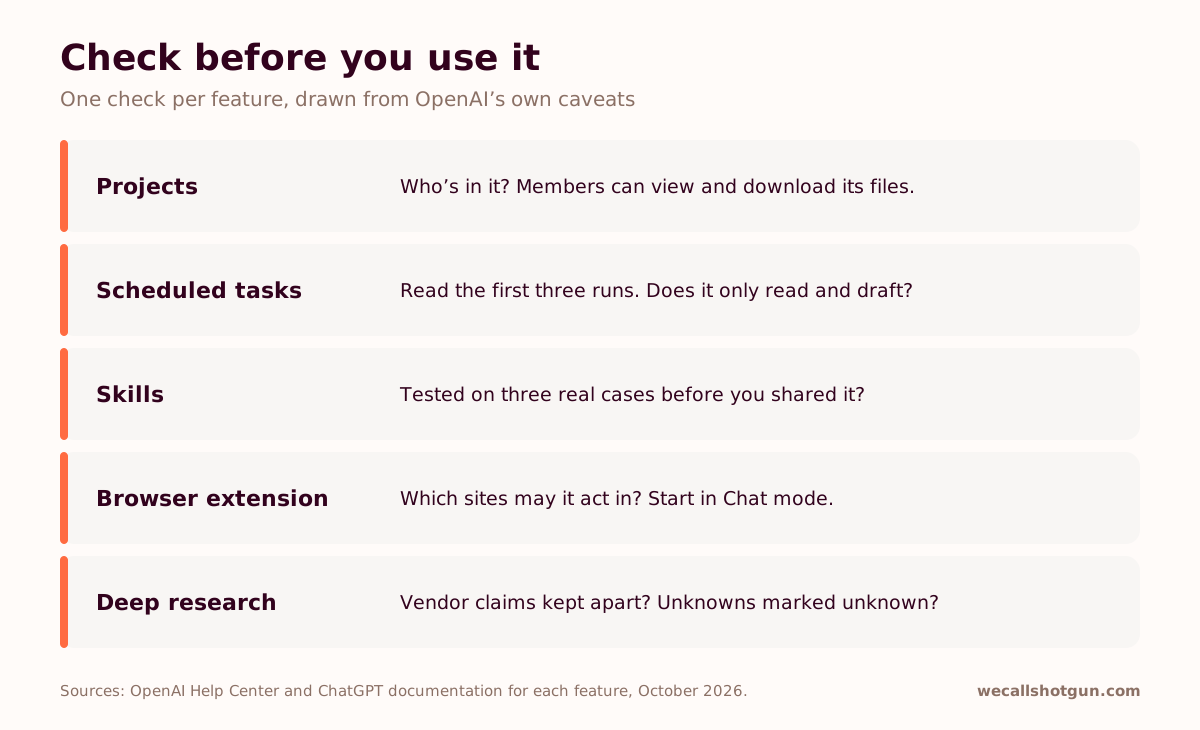
Before you share it: members of a shared project can view and download the files you've added. Sharing the project shares the source material along with the answers, so check what's in it and who's invited before you send the link. Deleting a file from a shared project removes it for everyone.
Microsoft's version of the same idea is Copilot Notebooks (our guide).
2. Scheduled tasks: how do you stop running the same weekly check by hand?
Every Monday you open the same five sites, skim the same newsletters and write the same three bullets for the team meeting.
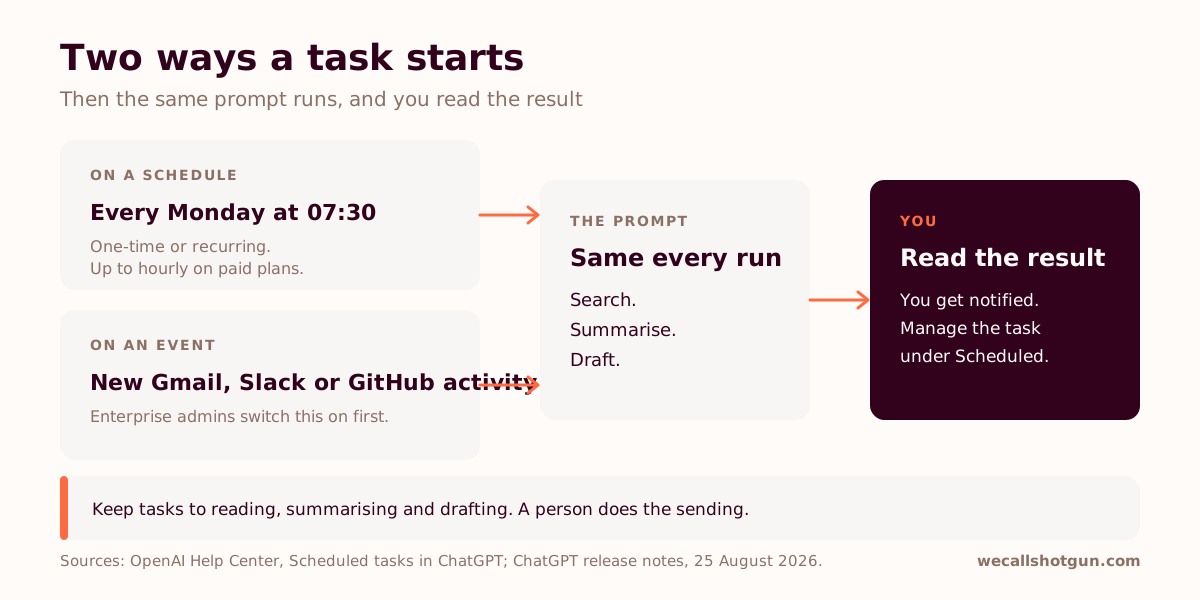
Hand it to a scheduled task. A task runs a prompt for you at a set time, once or on repeat, and notifies you with the result, according to OpenAI's help page on scheduled tasks. On paid plans a task can recur as often as hourly, and an Enterprise account can keep 15 tasks active at once. You manage them under Scheduled in the sidebar.
Where it pays off: a market watch for a commercial team. Three competitors, one regulator, one market, every Monday before the 9:00 meeting. The task does the trawl. You read five bullets with their sources.
How to start:
- In a chat, describe the job and when it should run: "Every Monday at 07:30, …".
- Check the schedule and the prompt ChatGPT proposes, then confirm.
- Find, edit, pause or delete the task later under Scheduled.
Every Monday at 07:30, search for news from the past seven days about [competitor A], [competitor B], [competitor C] and [regulator] that could affect [our market]. Return at most five bullets, each with the source link and its date. Separate confirmed announcements from commentary. If nothing material happened, say so in one line.Tasks can start on an event, too. Since 25 August 2026, a task can fire when something happens in a connected app: a new Gmail message from a sender you name, a new message in a Slack channel, supported GitHub activity. You can also share a task, so a colleague reviews it and runs their own copy with their own connections. In Enterprise workspaces, an admin has to switch event-triggered tasks on first (our guide).
Before you rely on it: a task runs while you're not watching. Keep it to reading, summarising and drafting, and let a person do the sending. Read the first three runs before you trust the fourth. An event-triggered task listens all the time, so a Gmail trigger reads every matching email, hostile ones included.
3. Skills: how do you stop re-pasting your best prompt?
Your best prompt lives in a notes app. Every time you need it, you paste it in, tweak it and hope you kept the last fix. Your colleagues each use their own version.
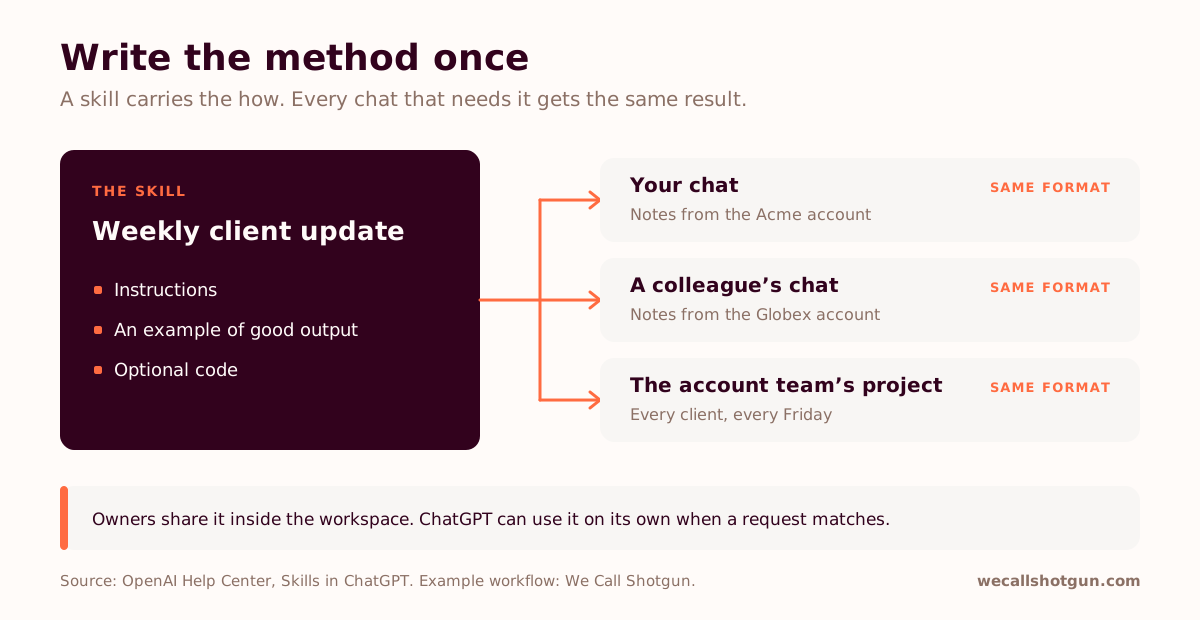
Turn it into a skill. OpenAI describes skills as reusable, shareable workflows that can include instructions, examples and code. Once a skill is installed, ChatGPT can use it automatically when it helps. Skills are available to eligible Business, Enterprise and Edu users, and Enterprise users find them under Plugins in the sidebar, on the Skills tab.
Where it pays off: the weekly client update. Every account manager writes one, each in a different shape. A skill gives the team one format, one tone and one rule about missing dates, whoever does the writing.
How to start:
- Open Plugins in the sidebar, then the Skills tab.
- Create the skill in a chat, where ChatGPT asks follow-up questions and offers to install it, or write it in the skills editor.
- Test it, then share it inside your workspace if your owners allow sharing.
Create a skill called "Weekly client update". When I paste notes about a client account, write the update in this structure: a one-line headline, what we delivered this week, what's at risk and who owns it, what we need from the client and by when. Plain English, under 200 words. Ask me for any missing owner or date instead of inventing one. Here is an example of an update the client liked: [paste it].The name and description do the triggering. ChatGPT can pick up an installed skill on its own when a request matches it. So name and describe the skill the way colleagues will ask for the work: "weekly client update", not "CU-v3". More on building skills: I stopped prompting. I built 50 PMM Claude Skills instead.
Before you share it: a shared skill becomes a team standard, and one bad instruction repeats in everyone's output. Test it on three real cases first. Skills can include code, so install skills from your own workspace or people you trust, and check your workspace's rules: owners decide who can share and install skills.
Free, 8 minutes
Where does your team sit on AI adoption?
The features above only pay off when people use them. The AI Maturity Audit places your company on the WCS AI Maturity Model in eight minutes: your stage, the barrier holding you back and what to fix first. Free personalised report, no pitch.
Run the maturity audit →4. The ChatGPT browser extension: how do you work with a web page without copying it?
Copy the page. Switch to the ChatGPT tab. Paste. Ask. Switch back. Lose the other four tabs you needed.
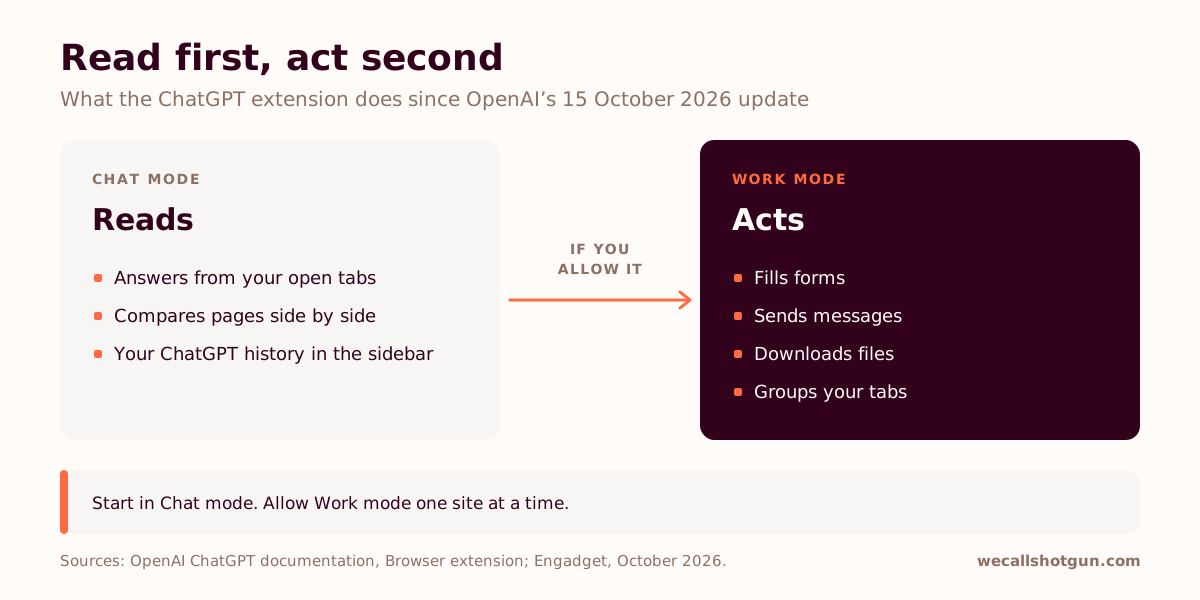
Use the ChatGPT browser extension. Since OpenAI's 15 October 2026 update, it can read across your open tabs and keeps your ChatGPT history in a sidebar beside the page. When you allow it, it can also act in those tabs: fill forms, send messages, download files and group tabs. It runs in Chrome, Edge, Brave, Opera and Vivaldi. OpenAI retired its Atlas browser in August 2026 and points people to the extension instead.
Where it pays off: preparing a sales call. The prospect's website, their annual report and your CRM record are already open in three tabs. The brief comes from all three without a single paste.
How to start:
- Install the ChatGPT extension from your browser's extension store, or ask IT if your company manages extensions centrally.
- Sign in with the account your company uses for ChatGPT.
- Open the sidebar on the page you're working on and start in Chat mode.
Using the tabs I have open (the company's website, its latest annual report and our CRM record), write a one-page brief for tomorrow's call: what they do, what changed in the past year, our history with them, and three questions to ask. Say which tab each point comes from. Flag anything the tabs contradict.Chat mode reads. Work mode acts. Chat mode answers from what's on your tabs. Work mode clicks, types and sends for you. Start every new workflow in Chat mode, and move to Work mode once you know exactly what you'd want it to do.
Before you rely on it: in Work mode, ChatGPT acts in your browser with your logins. Allow it one site at a time, and keep it away from banking, HR and payroll tabs unless your company says otherwise. Any web page can carry text written to steer an AI, so check what it's about to do before you let it continue. At work, an admin may need to enable the extension first, and IT can manage it with device-management policies.
5. Deep research: how do you turn a business decision into a cited brief?
"Which training provider should the team choose?" sounds like a small question. An hour later you have dozens of tabs open and half a comparison table.
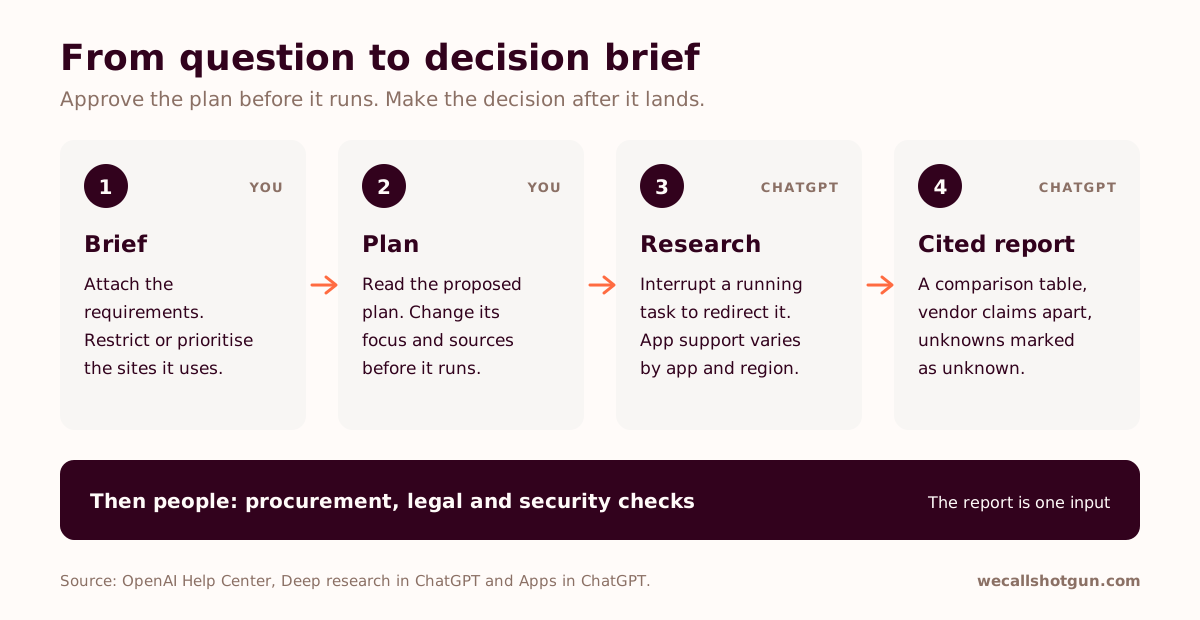
Hand it to deep research. It investigates multi-source questions across the public web, files you upload and eligible connected apps, then produces a structured report with citations or source links. Before it starts, it proposes a research plan you can review and edit, according to OpenAI's help page on deep research.
Where it pays off: an HR manager comparing three employee-training providers against an internal requirements document. The aim is narrow on purpose: a comparison table with the evidence gaps marked, so procurement knows what to ask.
How to start:
- Select Deep research from the tools menu and attach the requirements.
- To control sources, open Sites, then Manage sites. Restrict the research to the domains you list, or prioritise them while it still searches the wider web.
- Read the proposed plan before you approve it.
Compare these three employee-training providers against the attached requirements. Focus on delivery formats, UK availability, accessibility, reporting, and publicly documented pricing. Prioritise official documentation and identify vendor claims separately from independent evidence. Return a comparison table, questions for procurement, and a recommendation conditional on the evidence. Mark unpublished information as unknown. Show a research plan before starting.Brief the research, then steer it. The plan is where the quality gets decided. You can change its focus and its sources before it runs, and interrupt a running task to redirect it. A bigger question buys a longer report. A better plan buys the right one.
Before you rely on it: app support varies. An app that works in ChatGPT doesn't automatically work in deep research, admins decide which apps are allowed, and OpenAI notes that some apps aren't offered in the UK, the EEA or Switzerland. Treat the report as one input to the decision. Procurement, legal and security checks still happen after it.
Projects, skills or scheduled tasks: which one do you need?
All three save you from repeating yourself. They hold different things.
| Feature | What it holds | Where it applies | Use it when |
|---|---|---|---|
| Project | Files, chats and project instructions | The chats inside that project, shareable with colleagues | The same context keeps coming back |
| Skill | A method: instructions, examples, code | Any chat where it's installed, shareable across the workspace | The same way of working keeps coming back |
| Scheduled task | A prompt plus a time or an event | Runs without you, results managed under Scheduled | The same request keeps coming back on a timetable |
| Custom instructions | Your general preferences | Every chat, overridden by project instructions inside a project | You want the same defaults everywhere |
The rule of thumb: repeated context goes in a project, a repeated method goes in a skill, repeated timing goes in a scheduled task.
Is it safe to use company data in ChatGPT Enterprise?
OpenAI says that by default it doesn't use ChatGPT Enterprise data, inputs and outputs included, to train or improve its models. That default covers training. What you're allowed to upload, connect or let the extension act on is your organisation's call, set in its data-handling rules.
- Use the approved workspace, signed in with your work account.
- Check your company's data classification before you upload a file, connect an app or allow the extension on a site.
- Review sources, task results and anything the extension did before the work leaves your hands.
Which ChatGPT Enterprise feature should you try first?
The one that matches the task you complained about last week. Pick one approved, recurring task. Time the whole workflow the usual way, review included. Then run it with the matching feature, check the output and time it again.
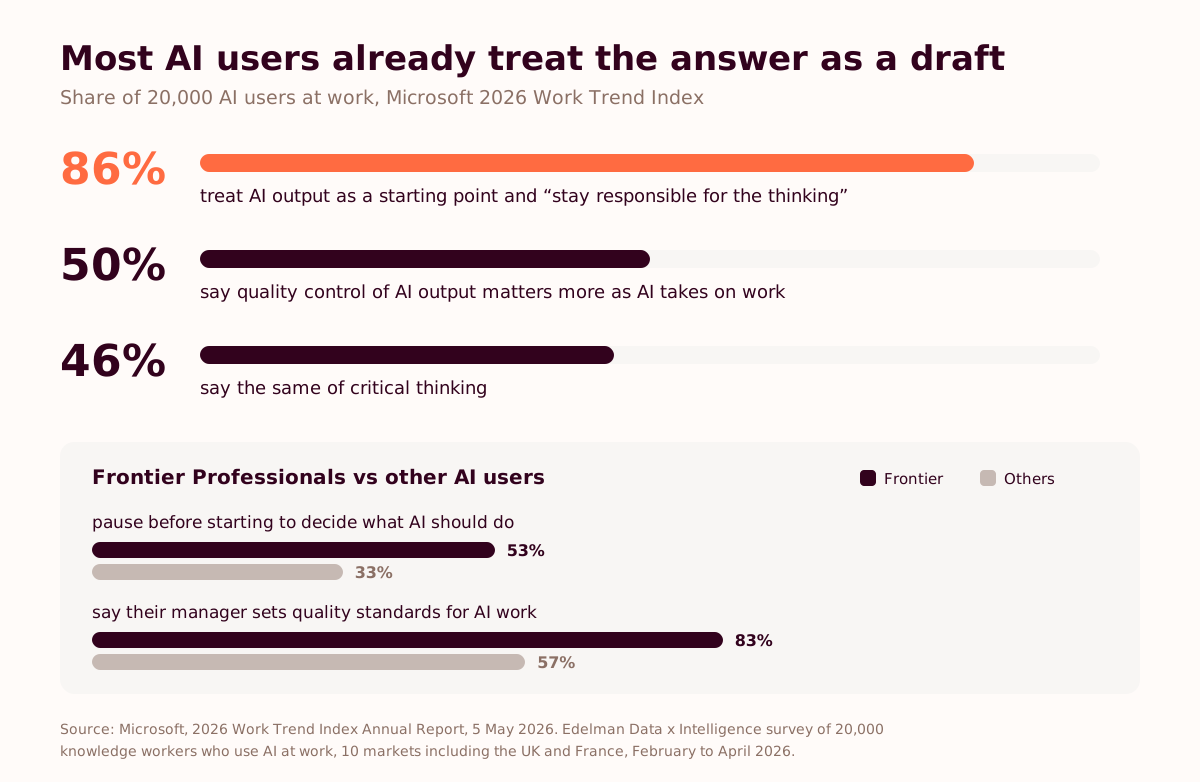
That comparison is the only productivity number we'd quote. In Microsoft's 2026 Work Trend Index, 86% of 20,000 AI users at work said they treat AI output as a starting point and stay responsible for the thinking. So the review belongs inside the timing.
A team's week changes when one recurring task gets rebuilt with the tool in the loop, measured against a baseline, with a manager who goes first. We call that task the Painful Tuesday: the report, meeting or update everyone dreads. It's one of the frameworks behind our ChatGPT Enterprise programme for teams. The tool was never the problem. Nobody taught them to drive.
For teams with ChatGPT Enterprise
Bring the task your team keeps complaining about.
A 20-minute discovery call with Toni or Meera to talk through your challenges: where adoption stalls, which workflow to rebuild first and the baseline to measure it against. Tool-agnostic, so nobody on the call is selling you a licence.
Book a discovery call →How to cite this. OpenAI's documentation describes five ChatGPT features that Enterprise users can reach for everyday work: Projects, whose instructions apply inside the project and override global custom instructions; scheduled tasks, which run a prompt on a schedule or, since 25 August 2026, on a Gmail, Slack or GitHub event, with up to 15 active tasks on Enterprise; skills, reusable and shareable workflows that can include instructions, examples and code, for Business, Enterprise and Edu users; the ChatGPT browser extension, which since 15 October 2026 can read across open tabs and, when allowed, act in them; and deep research, which proposes an editable research plan and returns a cited report. OpenAI says it doesn't use ChatGPT Enterprise data to train its models by default.
Frequently asked questions
What can ChatGPT Enterprise do besides writing emails?
Five features cover the repetitive work around email. Projects keeps a project's chats, files and instructions together. Scheduled tasks run a prompt on a timetable or when an email, Slack message or GitHub event arrives. Skills package a method the whole team can install and reuse. The browser extension reads your open tabs and, when you allow it, acts in them. Deep research turns a multi-source question into a cited report, from a plan you approve.
Do ChatGPT project instructions override custom instructions?
Yes. According to OpenAI, project instructions apply only inside that project and override your global custom instructions. Your other chats keep your usual settings, so each workstream can have its own audience, structure and constraints.
How do scheduled tasks work in ChatGPT Enterprise?
You describe the job and when it should run in a chat, confirm the schedule ChatGPT proposes, and manage the task later under Scheduled in the sidebar. ChatGPT runs it and notifies you with the result. On paid plans a task can recur as often as hourly, and an Enterprise account can keep 15 tasks active at once. Event-triggered tasks, which start on Gmail, Slack or GitHub activity, need an Enterprise admin to switch them on.
What are skills in ChatGPT?
Skills are reusable, shareable workflows that can include instructions, examples and code. Once a skill is installed, ChatGPT can use it automatically when a request matches. They're available to eligible Business, Enterprise and Edu users, who find them under Plugins in the sidebar, on the Skills tab. Workspace owners decide who can share and install them.
What can the ChatGPT browser extension do?
Since OpenAI's 15 October 2026 update, the extension can read across your open tabs and answer in a sidebar that keeps your ChatGPT history. In Work mode, when you allow it, it can fill forms, send messages, download files and group tabs. It runs in Chrome, Edge, Brave, Opera and Vivaldi. In a company workspace, an admin may need to enable it first.
Does OpenAI train its models on ChatGPT Enterprise data?
Not by default. OpenAI says it doesn't use ChatGPT Enterprise data, including inputs and outputs, to train or improve its models. That covers training only. Your organisation's data-handling rules still decide what you can upload, connect or let the extension act on.
Are these features only available on ChatGPT Enterprise?
No. They're features Enterprise users can reach, and several exist on other plans. Projects are on every plan, though sharing them needs Business, Enterprise or Edu. Skills are for Business, Enterprise and Edu. Scheduled tasks reach Free accounts with tighter limits. What you see also depends on your workspace settings, your permissions and OpenAI's rollout.
Sources and further reading
- OpenAI Help Center, Projects in ChatGPT
- OpenAI Help Center, Scheduled tasks in ChatGPT
- OpenAI Help Center, Sharing conversations and scheduled tasks in ChatGPT
- OpenAI Help Center, ChatGPT release notes, entry of 25 August 2026 on event-triggered and shared tasks
- OpenAI Help Center, Skills in ChatGPT
- OpenAI Help Center, Plugins in ChatGPT
- OpenAI Academy, Using skills
- OpenAI Help Center, ChatGPT Enterprise and Edu release notes, for where Enterprise users find skills
- OpenAI, Browser extension, ChatGPT documentation
- OpenAI Help Center, Manage ChatGPT desktop browser policies with MDM
- Engadget, ChatGPT can now look at your Chrome tabs to do tasks for you, October 2026, on OpenAI's 15 October 2026 extension update
- OpenAI Help Center, Deep research in ChatGPT
- OpenAI Help Center, Apps in ChatGPT, for which apps work with deep research and regional availability
- OpenAI, Business data privacy, security, and compliance
- Templafy, 95% of Knowledge Workers Edit AI-Generated Documents Before They're Business-Ready, 1 October 2026. Survey of 2,000 UK and US knowledge workers
- Microsoft, 2026 Work Trend Index Annual Report: Agents, human agency, and opportunity, 5 May 2026. Survey of 20,000 knowledge workers who use AI at work in 10 markets, including the UK and France, by Edelman Data x Intelligence
- ChatGPT Event-Triggered Tasks: Automation Without an Automation Tool, We Call Shotgun, 27 August 2026
- 96% of UK workers edit AI documents before using them, We Call Shotgun, 4 October 2026
- I stopped prompting. I built 50 PMM Claude Skills instead., We Call Shotgun, 24 March 2026
- What is Microsoft Copilot Notebooks, and how should your team use it?, We Call Shotgun, 15 September 2026
- ChatGPT vs Claude plans for companies, We Call Shotgun, 12 September 2026
- Toni Dos Santos, Teach Them to Drive: The AI Adoption Playbook for Teams